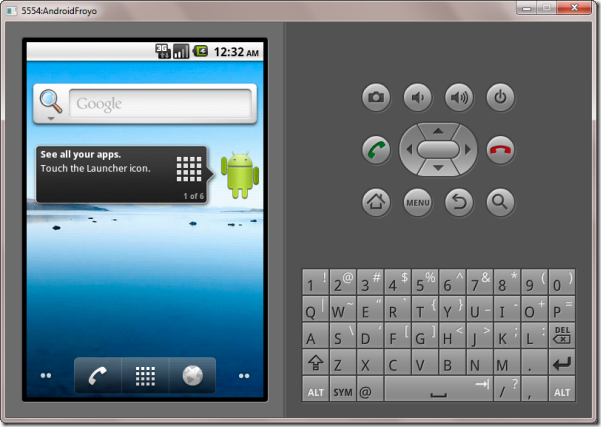
How to emulate an SD card for the Emulator
Android application development involves saving files (images,
songs etc.) to the emulator and accesses them at runtime.
These files should be saved to an SD card on the emulator that
can be accessed using "/sdcard". To enable the SD card, first
you need to create an SD card image. In order to create an SD
card image, Google provides a tool in their SDK/tools
directory "mksdcard".
While running "Mksdcard" the following parameters are
necessary:
a) Size of the SD card you want to create (in Kilobytes or
Megabytes)
b) Full path (Including name of the image file) of the
resulting image file
Example:
Open a command prompt; go to your SDK/tool directory, and type
Mksdcard -l mySdCard 128M D:\somefolder\sdcard.img
How to use or access Android emulated SDCard in Android Emulator
To use the emulated SDCard in the emulator, simply launch the
emulator with the
"-sdcard EmulatedCard_File_Path" parameter:
How to use or access Android emulated SDCard from command prompt
To use or access Android emulated SDCard from command prompt, Open command prompt; go to your SDK/tool directory, and type
-sdcard D:\somefolder\sdcard.img
How to use or access Android emulated SDCard from Eclipse
To access emulated SDCard with the emulator from Eclipse, follow these steps
- From eclipse, open the Run-Configuration.
- Then on the right panel, choose "target"
- And in the Additional Emulator Command Line Options, add
-sdcard <fullPath_to_your_SdCard_File>

Example: -sdcard D:\somefolder\sdcard.img
How to add files to emulated SDCard from command prompt
To add files (eg: .jpg file) to emulated SDCard from command prompt, follow these steps
- Open command prompt
-
Go to your SDK/tool directory, and type
adb push /sdcard/ command

Example: adb push "D:\icon.jpg"/ sdcard
easy way:
open eclipse navigate to DDMS perspective
select mnt
than sd card
choose the folder and the file
click on save as
Thanks for the post I really appreciate it it was very useful